If you’ve ever fallen in love with the font on a website and thought “I need that font for my brand”, I’m going to help you find the exact font they’re using!
TL;DR (Overview)
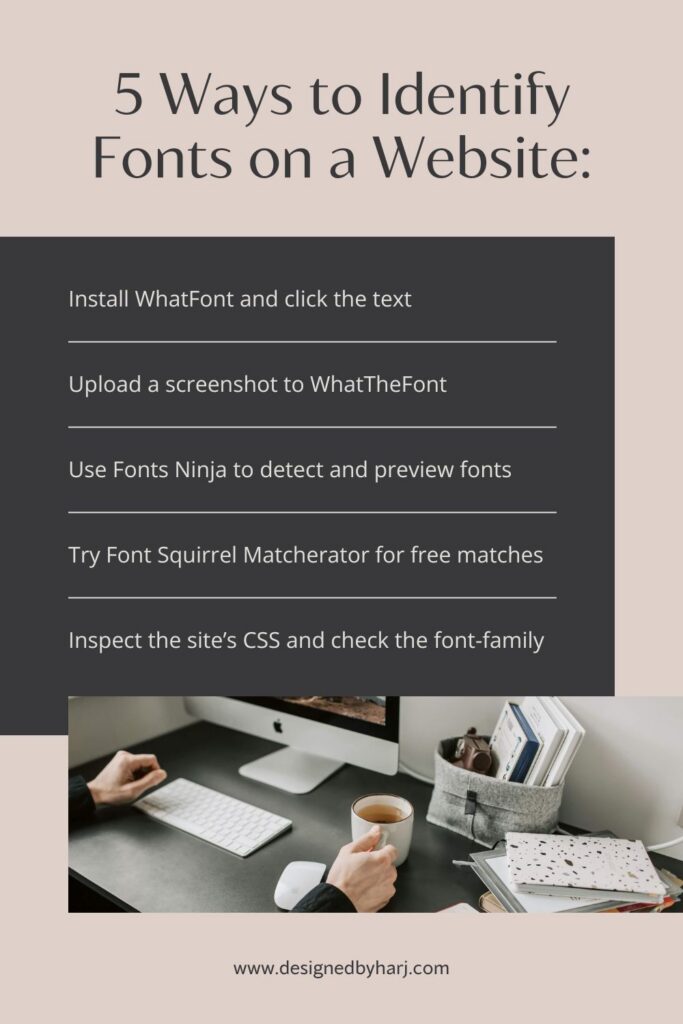
To identify font on a website, you can:
- Use a browser extension like WhatFont
- Upload a screenshot to tools like WhatTheFont
- Inspect the website’s CSS using your browser developer tools
- Try font-matching tools like Fonts Ninja or Font Squirrel Matcherator
The fastest method and the one I personally use all the time: install WhatFont and click on the text to get all the font details!
What Does It Mean to Identify Font on a Website?
To identify font on a website means figuring out the exact typeface (or closest match) used for headings, body text, or logos on a webpage.
This can help you:
- Recreate a design style you love
- Find fonts that match your vibe and use them for your own branding
- Choose complementary fonts for branding
- Maintain consistency across your website
- Communicate clearly with your designer
If you’ve ever wondered how to identify a font used on a website, the good news is: you don’t need to guess anymore.
Finding these tools was a game changer for me and I have a feeling it will be for you too!
Download Your FREE Cheat Sheet
The Plug-and-Play Blog Writing Prompts That Took My Traffic from 3K to 50K Impressions
This free cheat sheet will help grow your reach and visibility faster with AI prompts that will help you write each blog post faster and optimize it for SEO (Search Engine Optimization – think Google) and AEO (Answer Engine Optimization – think AI Search).
Method 1: Use the WhatFont Chrome Extension (Fastest + Completely Free)
If you regularly want to identify fonts on website designs, this is the easiest tool.
Why I recommend it
As I mentioned earlier, I personally use this extension all the time! It’s really easy and fast to use. Sometimes I will be browsing for inspiration (or even just looking things up not related to design) and will come across a font I love! I can quickly find out what it is and then save it in my font archive to pull from when I’m creating a brand or website design.
Now, let me show you exactly how you can use it too!
What’s Free?
- Completely free to install and use
- Unlimited font detection on websites
- No account required
- Works instantly after installation
For most people, this is all you need to identify the font on a website in seconds.
Step-by-Step How to Use the WhatFont Chrome Extension
- Go to the Chrome Web Store
- Search for WhatFont
- Click Add to Chrome
- Open the website you want to check
- Click the WhatFont icon
- Hover over any text
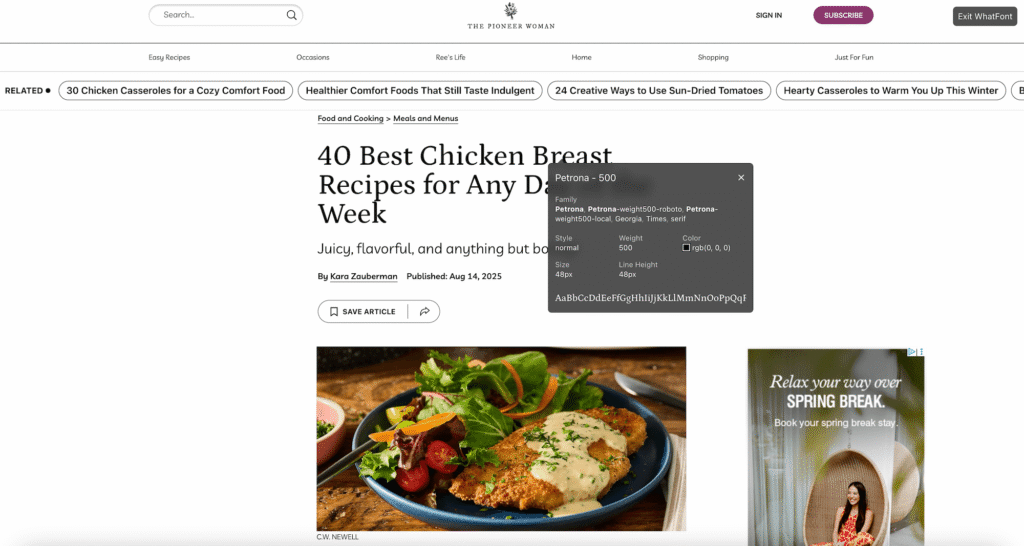
- Click the text to see:
- Font family
- Size
- Weight
- Line height
- Color
You can stop using the extension by clicking the exit WhatFont button on the top right of your browser.
👉 Download here: WhatFont Chrome Extension
Pro Tip: If the font is part of a font stack, WhatFont shows the actual loaded font, not just the fallback list. Which makes it very reliable when you need to identify the font on a website accurately.
How to Pin the WhatFont Extension in Chrome (So It’s Always Visible)
After installing WhatFont, Chrome doesn’t always show it in your toolbar automatically. Pinning it makes it appear right on your Chrome toolbar so it’s super easy to access and use whenever you want to identify font on a website.
Step-by-Step to Pin the Extension
- Open Google Chrome
- Look at the top-right corner of your browser
- Click the puzzle-piece icon (Extensions menu)
- Find WhatFont in the list
- Click the pin icon beside it
- The WhatFont icon will now appear permanently in your top toolbar
Easy peasy right! Now whenever you visit a site and want to identify the font on a website, just click the icon and hover over the text.
Method 2: Upload a Screenshot to WhatTheFont (Free for Basic Use)
This option is best to detect fonts on:
- Fonts inside images
- Logos
- Social graphics
- Non-selectable text
What’s Free?
- Free to upload images and get font suggestions
- Some suggested fonts may be paid fonts you must purchase separately
- No account required for casual use
Step-by-Step How to Use WhatTheFont
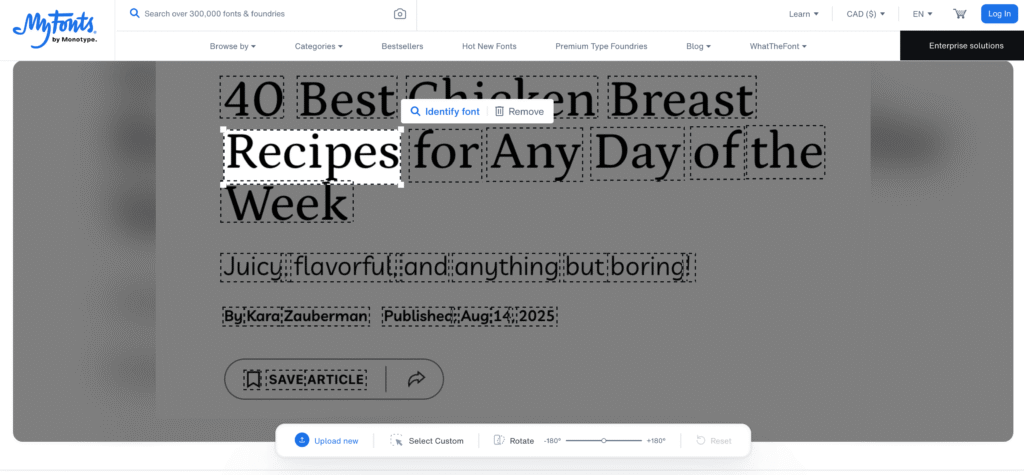
- Take a screenshot of the font
- Go to MyFonts WhatTheFont
- Upload the image
- Select the text area
- View matching results
👉 Try it here: WhatTheFont
This is especially helpful if you’re trying to identify font on website banners or hero graphics where extensions can’t read the text.
Method 3: Use Fonts Ninja (Free Extension With Optional Paid Upgrade)
Fonts Ninja is another browser extension that lets you:
- Detect fonts
- Preview similar fonts
- Test typography combinations
What’s Free?
- Free browser extension installation
- Free font detection on websites
- Paid plan required if you want to:
- Download certain fonts
- Access advanced font previews
- Use extended font organization tools
For most people, the free version is enough to simply identify the font you’re looking at!
Step-by-Step How to Use Fonts Ninja
- Install Fonts Ninja extension
- Activate it on a webpage
- Hover over text
- Click to inspect or preview
👉 Download here: Fonts Ninja
This tool is helpful when you want to identify a font on a website and explore alternatives for your own branding.
Method 4: Try Font Squirrel Matcherator (Completely Free)
This option is good for:
- Finding free font matches
- Checking licensing availability
- Identifying close alternatives
What’s Free?
- Fully free font identification tool
- Unlimited uploads for normal use
- Shows both exact matches and alternatives
This makes it a really helpful backup if you find a font you love and want to look for a free or more web-friendly alternative.
Step-by-Step How to Use Font Squirrel Matcherator
- Upload a screenshot
- Adjust detection markers
- Review matching fonts
👉 Use it here: Font Squirrel Matcherator
This is useful when you can identify fonts on website designs but need a free or web-safe alternative.
Method 5: Inspect the Website’s Code (Always Free + Most Accurate)
If extensions or screenshot tools don’t work, inspecting the site code will always let you identify the font on a website.
What’s Free?
- Built into every browser
- No downloads needed
- Unlimited use
Step-by-Step How to Inspect the Website’s Code
- Right-click the text
- Click Inspect
- Look under the styles tab for: font-family
This method guarantees you can identify the font on a website, though it’s slightly more technical.
When Font Detection Might Not Work
Sometimes tools struggle to figure out what font is being used on a page when:
- The text is an image
- The font is custom-built
- The font loads dynamically
- The site uses heavy fallback stacks
In those cases, combine:
✔ Screenshot tools
✔ Code inspection
✔ Designer inquiry

FAQ: Identifying Fonts on Websites
How do I identify font on a website instantly?
Install a browser extension like WhatFont and click the text.
Can I identify fonts on website images?
Yes, use screenshot-based tools like WhatTheFont or Matcherator.
How accurate are font detection tools?
Usually very accurate for web fonts, but custom fonts may only show close matches.
TL;DR Recap
To identify font on a website:
- Use WhatFont for fastest detection
- Use WhatTheFont for screenshots/images
- Use Fonts Ninja for alternatives
- Use Matcherator for free matches
- Inspect CSS if needed
If you’ve been collecting font inspiration but aren’t sure how to turn it into a beautiful website design, I help solopreneurs create strategic, SEO-friendly websites that feel calm, professional, and aligned! Book a free consultation here.
You’ll also love…
10 Best Google Font Pairings Designers Love (And How to Choose Font Pairs for Your Website)
How to Learn Graphic Design Using Canva: A Web Designer’s Branding Workflow
Personal Branding for Solopreneurs: A Simple 5 Step System That Grows With You
AI for Blog Writing: 5 Strategic Steps for Faster, SEO-Friendly Blog Posts
How to Create a Simple Blog Post Outline in 20 Minutes (Step-by-Step Guide)
Liked this post? Pin it to Pinterest! 👇